Vault layout
Everything Project Manager creates is plain markdown in your vault. There’s no database and no hidden state. You can move, rename, and version these files with the same tools you use for the rest of your notes.
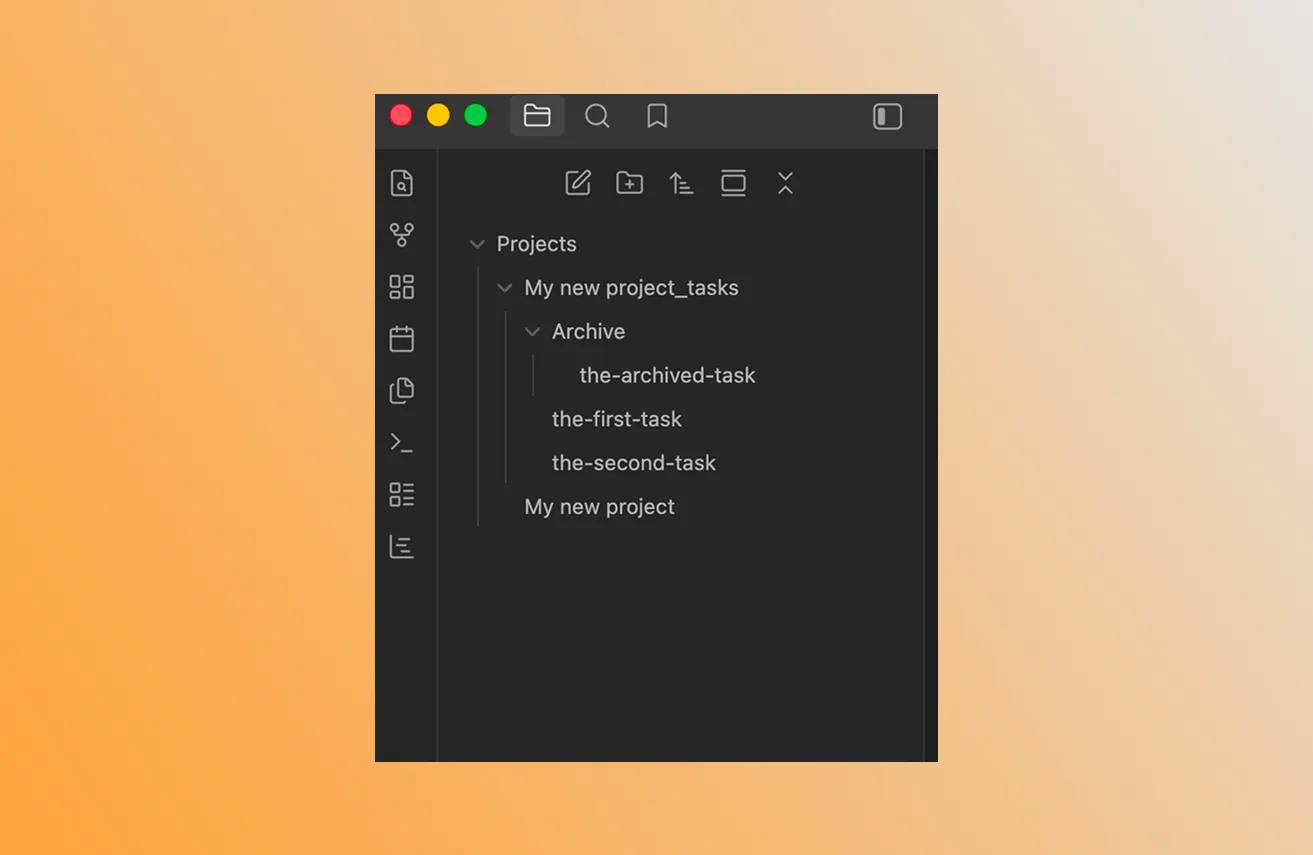
The layout
Your Vault/
└── Projects/
    ├── Website Redesign.md            project metadata
    ├── Website Redesign_tasks/        task files
    │   ├── audit-current-site.md
    │   ├── new-homepage-copy.md
    │   ├── ...
    │   └── Archive/                   archived tasks
    │       └── old-task.md
    └── Internal Tools.md
        Internal Tools_tasks/
        ...
The Projects folder
The top-level folder where all projects live. Configurable under Settings → Project Manager → Projects folder. Default: Projects.
You can put it anywhere in the vault — Work/Projects, 02 Areas/PM, whatever fits your filing system. Set the path once; the plugin will use it for new projects and read existing ones from there.
Project file
<Project name>.md. Frontmatter contains:
pm-project: true— the marker the plugin looks for.- Project metadata: title, icon, color, custom field definitions, team members, saved views, timestamps.
taskIds— the list of top-level task IDs (used to preserve order).
The markdown body has a heading and a ## Tasks section with wiki links to each task file. The plugin keeps this section in sync.
Tasks folder
<Project name>_tasks/. Created the first time you add a task. Holds one file per task — including subtasks at any depth.
Files are named <slug>.md, where the slug is the task title — lowercased, non-alphanumeric stripped, hyphenated, max 40 chars.
If a new task’s slug collides with an existing file in the same project, the task modal shows an inline error and the task won’t save until you pick a different title.
Tasks created before plugin version 1.5 keep their older
<slug>-<id>.mdfilenames until you change the title or rename the file yourself.
Archive subfolder
<Project name>_tasks/Archive/. Tasks moved here are treated as archived. There’s no separate “archived” flag in the file — being in the Archive folder is what archived means.
Archived tasks:
- Are hidden from the default table view (toggle Show archived in the filter bar to see them).
- Don’t trigger notifications.
- Are skipped by auto-schedule.
To restore: drag the file out of Archive/, or use bulk Unarchive.
Editing by hand
You can open any of these files in Obsidian — or any other editor — and edit the frontmatter directly. Two rules:
- Task IDs must be unique within a project. Don’t copy a file without changing its
id. - Dates use
YYYY-MM-DD. An empty string ("") means unset; don’t usenull.
The plugin re-reads files on vault change events, so manual edits show up immediately.
Where to go next
- Projects and tasks — the data model.
- Data format — the full YAML schema, field by field.
- Archived tasks — what the
Archive/subfolder is for.
Tips
The one-file-per-task layout is what makes sync conflicts rare. When two devices edit different tasks, they edit different files — no merge needed.
Want to move a project to a different vault? Copy the project file and its
_tasks/folder together. They reference each other by ID, so the relative location inside the new vault doesn’t matter as long as both are present.