Table view
The table is where most of the work happens. Filter, sort, edit inline, multi-select for bulk changes, and open the task modal in a click.
Anatomy
Top to bottom:
- Filter bar — text search, status / priority / assignee / tag pills, due-date filter, archived toggle. Shared across table, gantt, and kanban views.
- Saved views bar — your saved filter + sort + view-mode combos for this project.
- Bulk action bar — appears when you select rows.
- Table — your tasks, one row each. Subtasks indent under their parent.
- + add task button at the bottom of the table — opens the task modal pre-set to the current project.
Adding a task
Click + add task below the table, or run Create new task from the command palette. The full task modal opens — fill in title, status, dates, etc., and save.
For status, priority, due date, progress, or title tweaks on tasks that already exist, inline editing is faster than reopening the modal.
Inline editing
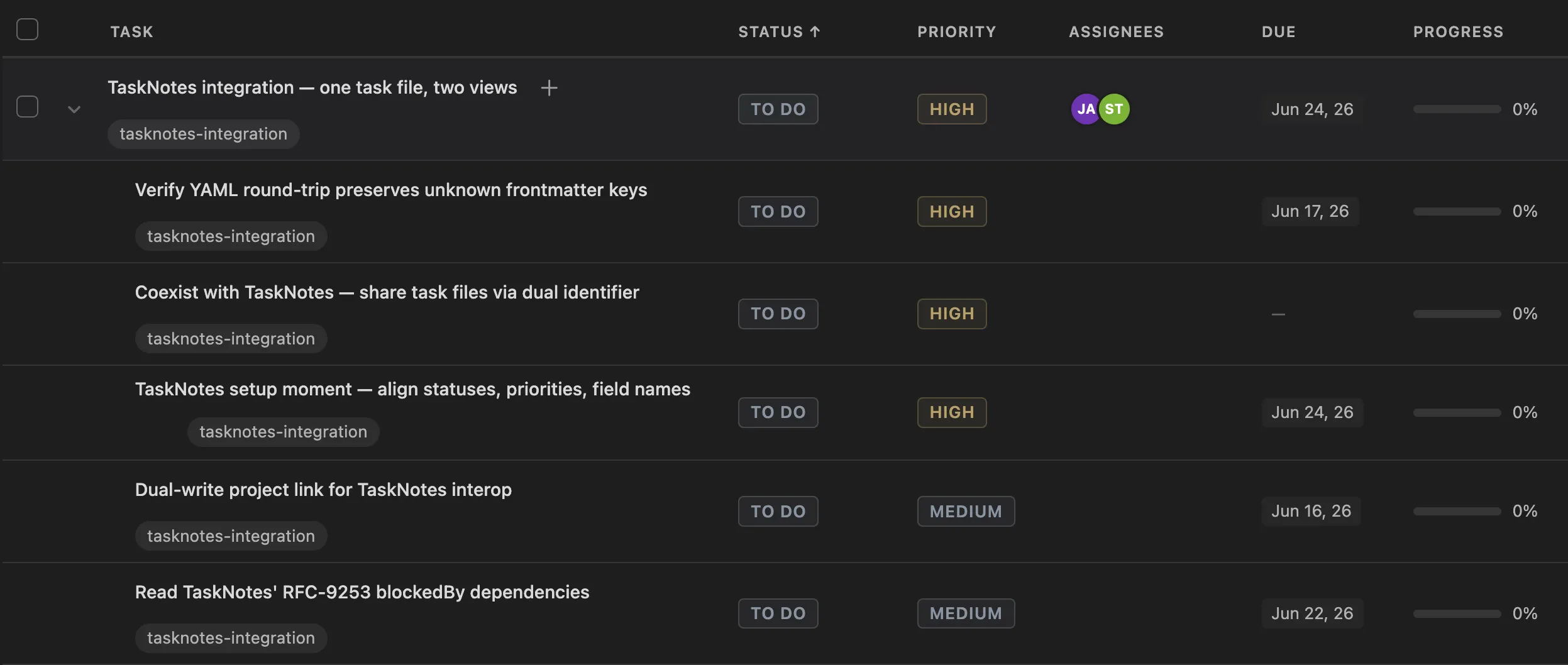
Click any editable cell to edit in place:
- Title — click the text, edit, Enter to save, Escape to cancel.
- Status and priority — click the badge, pick from the dropdown.
- Due date — click the date, pick from the date picker.
- Progress — click the bar, type a number, Enter.
For everything else (description, custom fields, dependencies, subtasks), open the full modal.
Filtering
The filter bar accepts:
- Text search — case-insensitive substring match on title, description, and tags.
- Status — multi-select pills.
- Priority — multi-select pills.
- Assignee — multi-select.
- Tag — multi-select.
- Due date — any / overdue / this week / this month / no date.
- Show archived — toggle to include archived tasks.
Filters combine with AND across categories, OR within a category (status = “todo” OR “in progress”, AND priority = “high”).
Active filter pills sit above the table. Click an × on any pill to remove that filter; the URL of what’s filtered is reflected in the pills themselves.
Sorting
Click a column header to sort. Click again to flip direction. Sortable columns: title, status, priority, assignee, due, progress. Custom field columns are not currently sortable.
Default sort is by status, ascending — matching the order set in Settings → Statuses.
Columns
Use the column picker to show, hide, or reorder columns. Fixed-ish set:
- Select checkbox
- Title
- Status
- Priority
- Assignees
- Due date
- Progress
- Time (logged hours)
- One column per custom field (toggleable in the column picker)
- Actions menu
Subtask collapse and expand
Subtasks indent under their parent. Click the chevron next to a parent to collapse or expand. Each task remembers its own collapsed state (stored in the YAML).
There are toolbar buttons for expand all and collapse all when you want to flip the whole tree.
Bulk select and bulk edit
- Click a row’s checkbox to select.
- Shift-click another row to select the range.
- Ctrl/Cmd-click to add or remove a single row from the selection.
- Select all in the header to grab everything visible (respects filters).
With one or more rows selected, the bulk action bar appears with: set status, set priority, set assignee, set tag, set due date, set progress, set parent, remove parent, archive, unarchive, delete. See Bulk operations.
Opening the task modal
Click anywhere on a row (outside an editable cell) to open the task modal. Or press Enter on a focused row.
The row context menu
Right-click any row for per-task actions:
- Edit task — open the full modal.
- Add subtask — open the modal with this task as the parent.
- Duplicate task — create a copy. If the task has subtasks, you’re asked whether to duplicate with subtasks or just the task. The copy lands in the same project with
(copy)appended to the title; assignees, tags, custom fields, status, priority, dates, and (for “with subtasks”) the full subtree are carried over. Dependencies are not copied. - Archive / Unarchive — see Archived tasks.
- Delete task — with confirmation.
The same context menu is available in the kanban and gantt views.
Where to go next
- Saved views — store and reuse a filter + sort combo.
- Bulk operations — the full bulk action bar.
- Custom fields — add columns of your own.
Tips
Inline edit before reaching for the modal. Status, priority, due, progress, and title all edit in place — the modal is only worth opening when you need description, custom fields, dependencies, or subtasks.
Filter state is per-project and survives plugin reloads. Switching projects doesn’t drop your filters; coming back later restores what you had.