How the data model works
The plugin’s data model is small: a project is a container, a task is a unit of work. Each gets its own markdown file. Everything else — statuses, dependencies, custom fields, saved views — hangs off these two.
If you’ve already followed the onboarding (Create your first project, Create your first task), this is the why behind what you saw on disk.
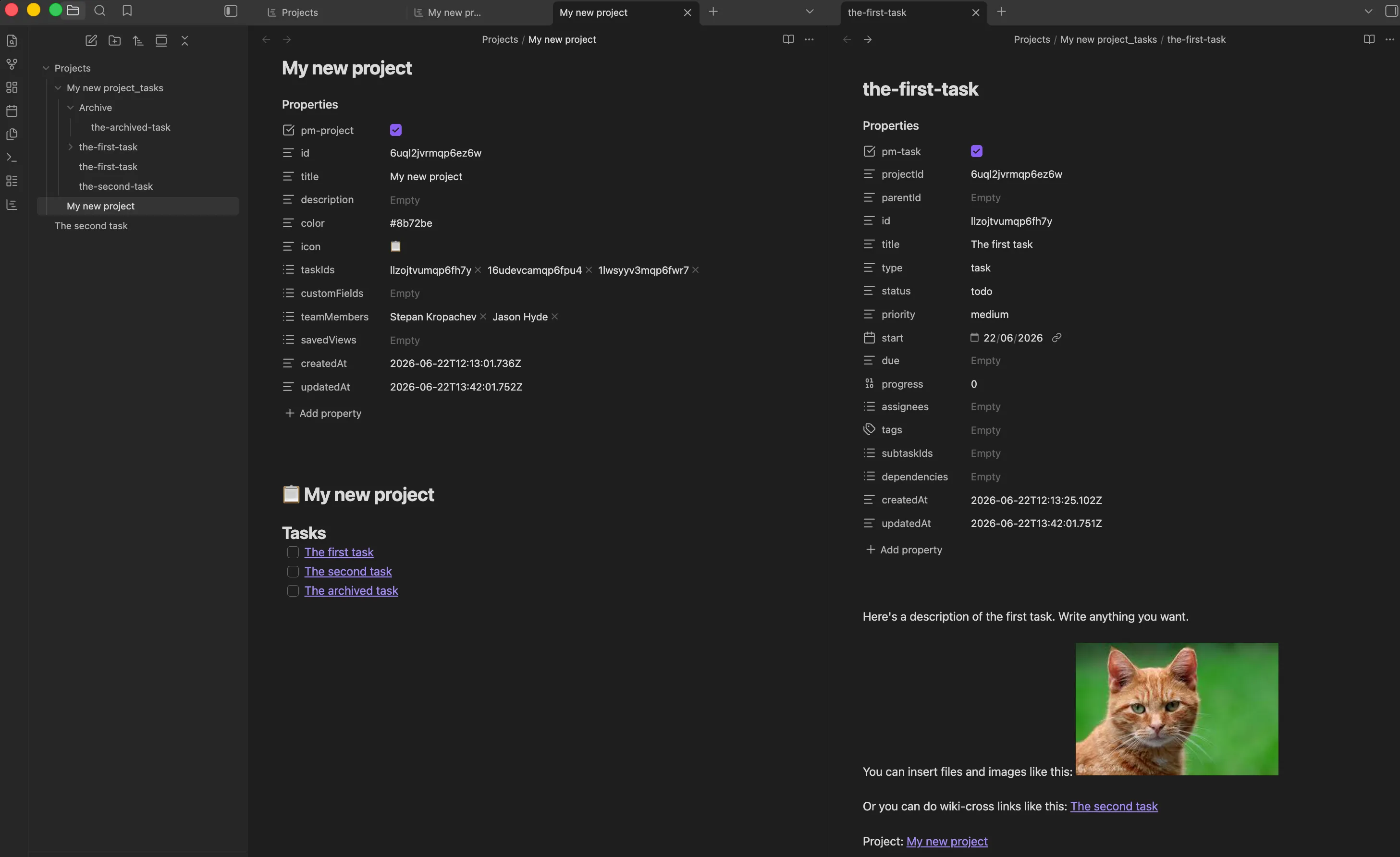
What a project is
A project is a markdown file with pm-project: true in its frontmatter. Beyond the basics (title, icon, color) it holds:
- Custom field definitions — see Custom fields.
- Saved views — filter/sort/view-mode combinations specific to this project.
- Team members — the per-project assignee list, on top of the global one.
- Task IDs — the ordered list of top-level tasks. The order in this list is the order you see in the table view (before any sort is applied).
Projects don’t have status, priority, or dates of their own. They’re a container; the timeline comes from the tasks inside.
What a task is
A task is a markdown file with pm-task: true in its frontmatter, sitting inside a project’s <Project>_tasks/ folder. Every task has:
- Title and description (the markdown body).
- Status — see Statuses and priorities.
- Priority — critical / high / medium / low.
- Start and due dates (
YYYY-MM-DD, both optional). - Progress (0–100).
- Assignees and tags.
- Subtasks and dependencies — see Subtasks and dependencies.
- Type —
taskormilestone. Milestones are zero-duration and render as diamonds in the gantt view. - Custom field values — whatever the project defines.
- Time logs and a time estimate — see Time tracking.
A task can have any depth of subtasks. There’s no distinction between a “task” and a “subtask” beyond the parent link.
Why one file per task
Three reasons:
- Git-friendly. One change touches one file. Diffs are tiny and merges almost never conflict.
- Sync-friendly. Obsidian Sync, iCloud, Dropbox, Syncthing — they all move file-shaped things between devices. Two devices editing two different tasks means two different files; no conflict.
- Hand-editable. You can
grepyour tasks. You can write scripts against them. You can open a single task in your editor of choice without launching Obsidian.
The trade-off: a project with a thousand tasks is a folder with a thousand files. Obsidian handles that fine, but file-explorer scrolling will get long. Most projects don’t approach that scale.
Tags and assignees
Tags are free-form strings on a task, used for filtering and grouping. They aren’t shared with Obsidian’s built-in #tag system — they’re a separate list in the task’s frontmatter.
Assignees are picked from two sources, combined:
- Global team members — set under Settings → Project Manager → Team members. Available in every project.
- Per-project team members — set on the project. Available only in that project.
Both lists are just arrays of strings. There’s no user system, no permissions; assignees are names you can filter on.
Setting per-project team members
To add team members that only show up in a single project:
- Open the project.
- Click the project title (or the edit icon in the header) to open the Edit project modal.
- Find the Team members section.
- Type a name into the input and press Enter (or click + add). The name appears as a chip in the list.
- Remove a member by clicking the × on their chip.
- Save the project.
Per-project members appear in assignee pickers alongside the global list — they don’t replace it. Two projects with the same per-project name don’t share state; each is its own string on each project file.
Stored as teamMembers: [] in the project’s frontmatter. Hand-edit if you’d rather.
Where to go next
- Subtasks and dependencies — nest tasks and link blockers.
- Custom fields — add typed fields specific to a project.
- Data format — exactly what gets stored where.
Tips
Use a project per outcome, not per theme. “Launch v2 site” is a project. “Marketing” is not — it’s a tag.
Team members are global because the same person usually shows up in multiple projects. Per-project members exist for the cases where they don’t.