Time tracking
Log hours against tasks. Set an estimate, compare actual vs. planned, and see totals in the table view’s time column.
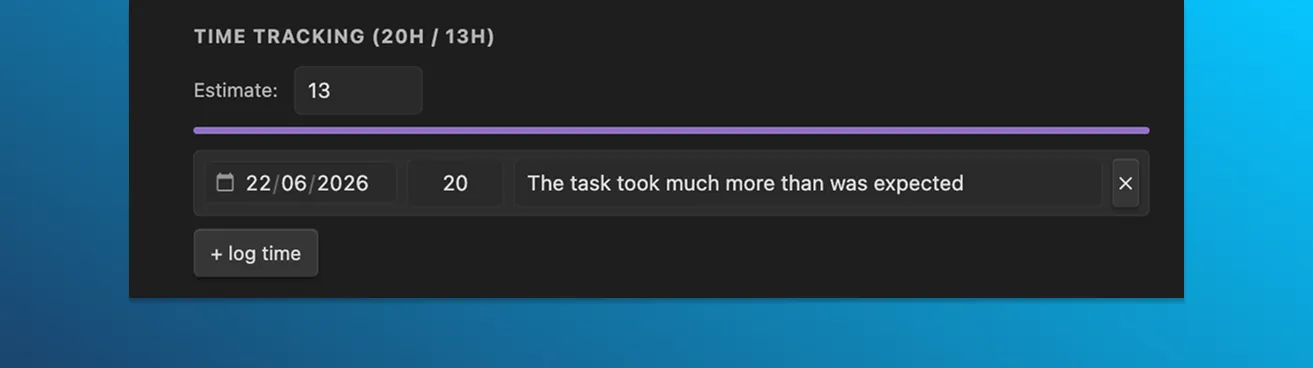
The time tracking panel
Open any task. The time tracking panel sits below the standard fields. The panel is hidden for milestone-type tasks (which don’t have duration).
The panel header shows totals — Time tracking (2h / 10h) means 2 hours logged against a 10-hour estimate.
Set an estimate
In the panel, set estimate (hours). Step is 0.5 hours; minimum 0.
If an estimate is set, a progress bar shows logged ÷ estimate. The bar turns red if you exceed the estimate.
The estimate is optional — leave it at 0 (or unset) and the bar is hidden.
Log time manually
Each log entry has three fields:
- Date (
YYYY-MM-DD, defaults to today). - Hours (number, step 0.25, min 0).
- Note (free-form text).
Click + log time to add an entry. Each entry has a remove button on its right.
Logs save with the task — on Save, or on close if save tasks on close is on.
Where time data lives on disk
The task’s YAML includes a timeLogs array, omitted if empty:
timeEstimate: 10
timeLogs:
  - date: "2026-05-22"
    hours: 1.5
    note: "First draft"
  - date: "2026-05-23"
    hours: 0.5
    note: "Edits after review"
Adding or editing entries by hand is fine — the plugin re-reads on file change.
Totals in the table view
The time column in the table view shows the sum of hours across the task’s timeLogs. It’s display-only; not currently sortable.

Where to go next
- Data format —
timeLogsandtimeEstimatein full. - Table view — the time column.
Tips
Logging is manual — there’s no auto-tracker. Trade-off: lower friction to set up, no background process, but you have to remember to log. Most people batch logs at the end of a session.
Big estimates (“80h”) tend to be wrong. If you find a task is heavily over its estimate, break it into subtasks with their own estimates. Rollups give you a more honest picture.