Create your first task
A task is a single unit of work. It lives in its own markdown file inside the project’s _tasks/ folder.
How to add a task
Task modal
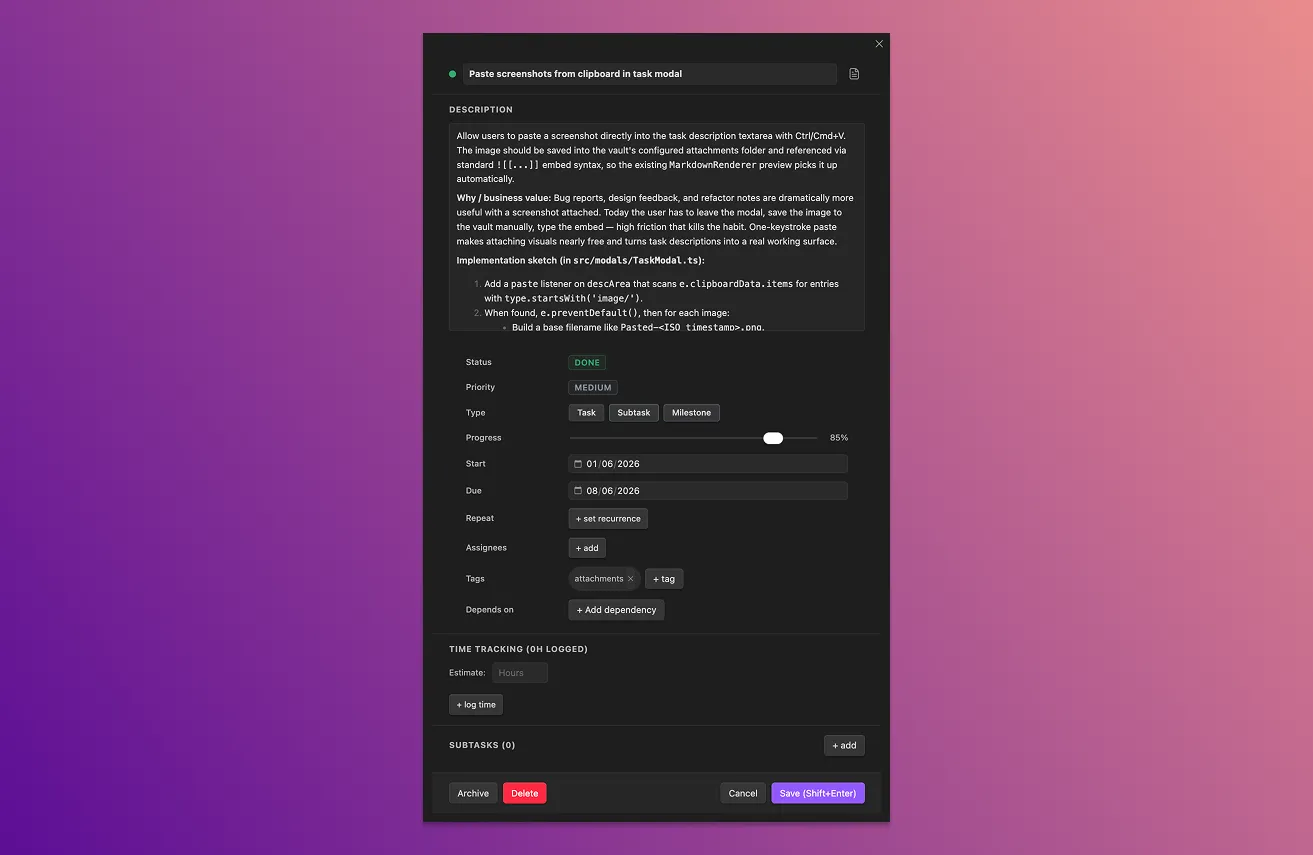
- Click + new task from the toolbar, or run Create new task from the command palette.
- Fill in any fields you need:
- Title (required).
- Status — see Statuses and priorities.
- Priority — critical, high, medium, or low.
- Start and Due —
YYYY-MM-DD, both optional. - Assignees — picked from the project’s team plus the global list.
- Tags — free-form labels for filtering.
- Description — free-form notes (markdown).
- Type — task or milestone. A milestone has a single date and renders as a diamond in the gantt view.
- Save: click Save, or press Shift+Enter anywhere in the modal.
Inline edit
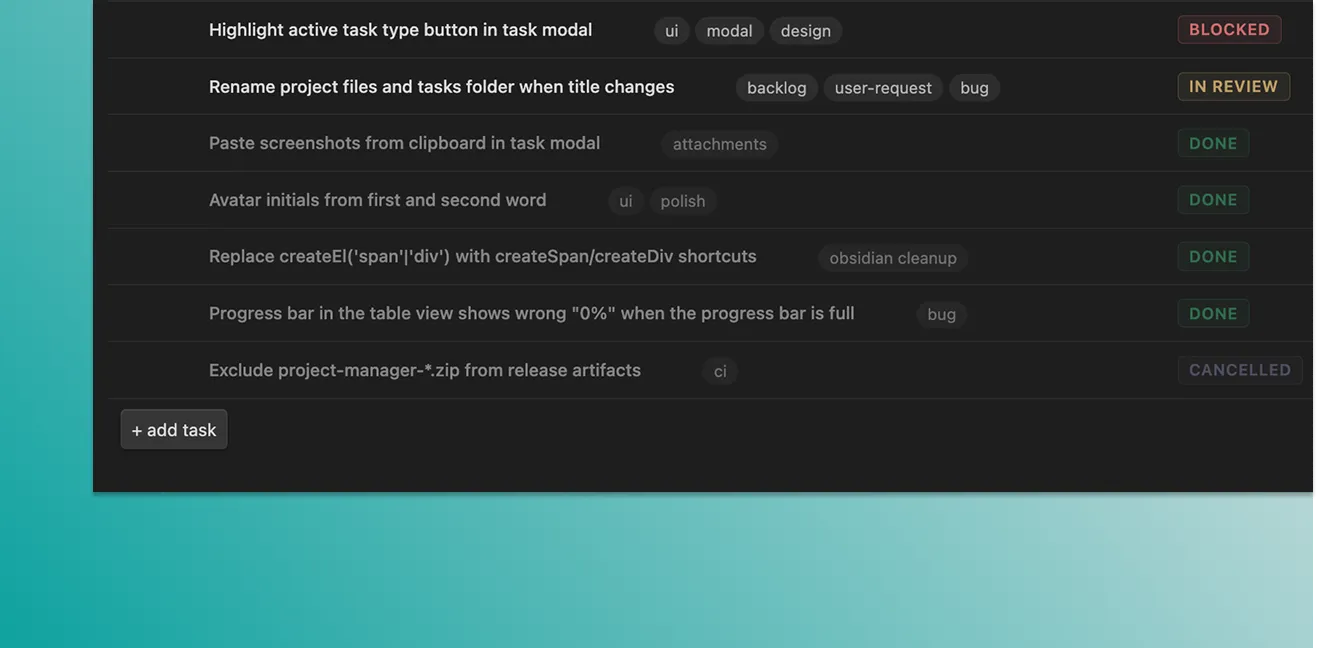
In the table view, click any editable cell (status, priority, dates, title) to edit in place. Press Enter to commit, Escape to cancel.
Saving — and “save on close”
By default, closing the task modal saves your changes. To require an explicit save instead, turn off Save tasks on close under Settings → Project Manager.
What was created on disk
A markdown file at Projects/<Project>_tasks/<slug>.md, where <slug> is the task title — lowercased, spaces become hyphens, max 40 characters.
Example: a task titled “Write release notes” gets a filename like write-release-notes.md.
If another task in the same project already uses that filename, the title input shows an inline error and the task won’t save until you pick a different title.
Tasks created in earlier versions keep their
<slug>-<id>.mdfilenames until you rename the title or the file yourself.
The file’s YAML frontmatter holds every field you can set on a task. The markdown body is the task’s description.
See Data format for the full schema.
Where to go next
- Table view — filter, sort, and edit tasks in bulk.
- Statuses and priorities — customize the workflow.
- Subtasks and dependencies — break work down and link blockers.
Tips
Quick-add gives you a sensible default task in one keystroke. Use it for capture, then open the modal later to fill in the rest.
If you want to create a subtask of a specific task, run Create new subtask from the command palette — it’ll prompt you for the parent.