Settings reference
Every setting in Settings → Project Manager, in the order it appears. The defaults below match a fresh install.
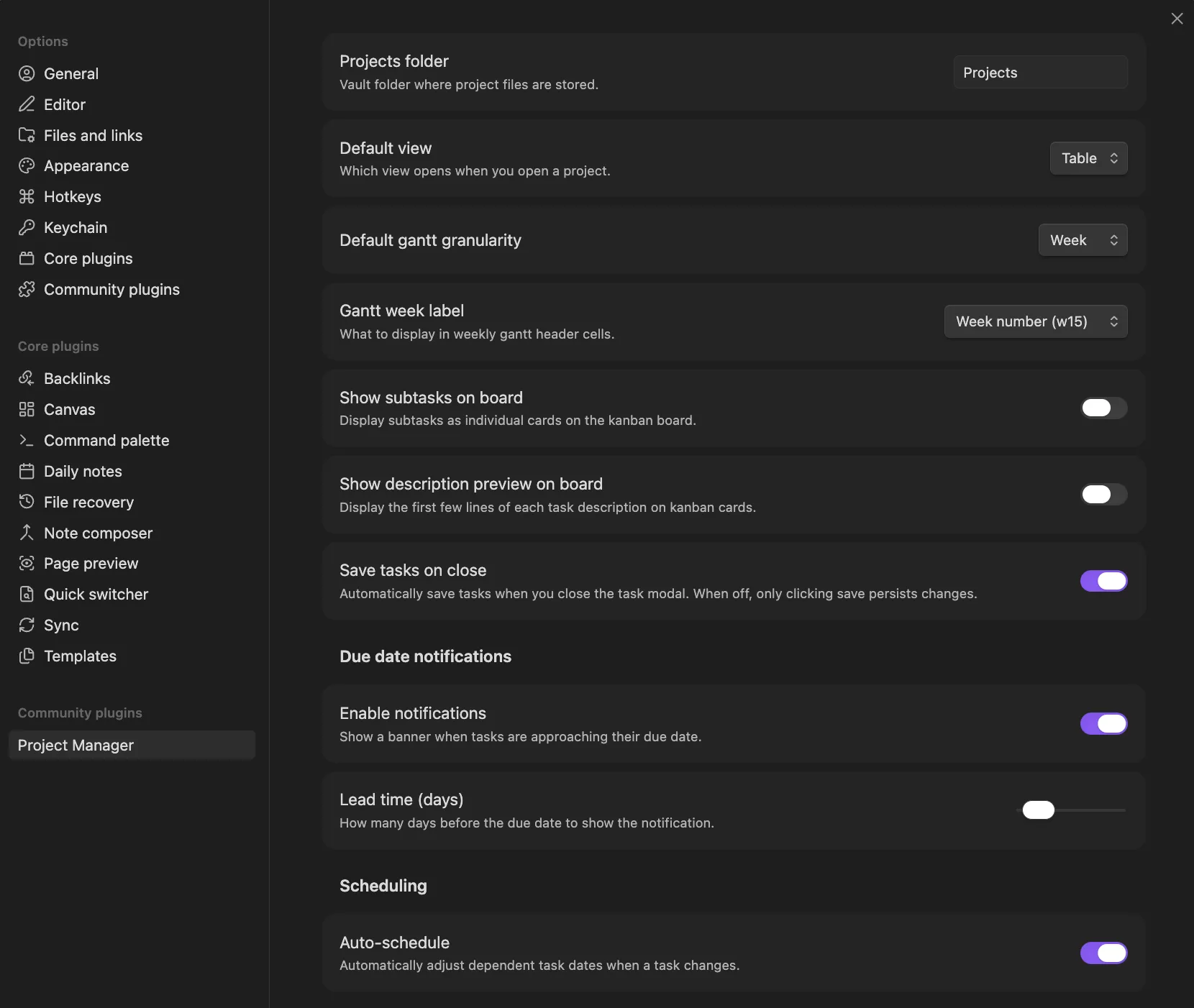
General
Projects folder
The vault folder where all project files live.
- Type: text
- Default:
Projects
Sub-folders are fine — Work/PM, 02 Areas/Projects, anything. The folder is created on first project save if it doesn’t exist.
Default view
Which view opens when you open a project.
- Type: dropdown — table / gantt / board
- Default:
table
Default gantt granularity
The starting zoom level when opening the gantt view.
- Type: dropdown — day / week / month / quarter
- Default:
week
Gantt week label
Format of the header label for week cells in gantt week / day views.
- Type: dropdown
- Week number — “w15”
- Date range — “apr 7–13”
- Both — “w15: apr 7–13”
- Default: week number
Show subtasks on board
Whether subtasks appear as their own cards in the kanban view.
- Type: toggle
- Default: off
When off: only top-level tasks appear on the board; subtask progress feeds a badge on the parent card.
When on: subtasks appear as independent cards, draggable separately.
Save tasks on close
Whether closing the task modal auto-saves your changes.
- Type: toggle
- Default: on
Off means you must click Save (or press Shift+Enter) to commit. Closing without saving discards changes.
Due date notifications
Enable notifications
Master switch for in-app due-date notifications.
- Type: toggle
- Default: on
When on, the plugin checks task due dates every hour and shows a banner for any task that’s overdue or coming due within the lead window. Notifications are suppressed for tasks whose status is marked complete, and for archived tasks.
Lead time (days)
How many days before a due date to start showing the “due soon” banner.
- Type: slider, 1–14
- Default:
2
A task with due between today and today + lead-time fires a “due in N days” notification (or “due today”). Past due fires the “overdue” notification.
Scheduling
Auto-schedule
Automatically shift dependent tasks forward when a predecessor moves.
- Type: toggle
- Default: on
See Subtasks and dependencies for the full rules. In short: the plugin only moves dates forward and only along outgoing dependency edges from the task you changed. Archived predecessors and complete statuses are skipped.
Turn it off if you want full manual control of dates.
Team members
The global list of people who can be assigned to tasks. Combined with per-project team members on the project itself.
- Type: list of strings
- Default: empty
Add or remove names with the + and trash icons. Names are just labels — there’s no user system, no auth, no permissions.
Statuses
The full status list for this vault.
For each status:
- Label — display name.
- Icon — optional emoji or lucide icon name.
- Color — hex color used for badges and the kanban column header.
- Complete flag — marks the status as a terminal state. Affects notifications (suppressed for complete statuses) and auto-schedule (skipped for complete statuses).
Operations:
- Reorder — drag the handle. Order is the order in kanban columns and table status sort.
- Edit — click the row to change label, icon, or color.
- Delete — orphaned tasks are remapped to the first status in the list.
- + add status — append a new one.
Default statuses ship as: to do, in progress, blocked, in review, done (complete), cancelled (complete).
Priorities
Not user-editable in the current version. Priorities are a fixed set: critical, high, medium, low.
Where to go next
- Statuses and priorities — the workflow side of the status editor.
- Subtasks and dependencies — the rules behind auto-schedule.
- Gantt view — how the granularity and week-label settings show up.